

The dot plot with a box-and-whisker overlay is the workhorse display of NCEA statistics. It shows the shape of the data and a five-number summary at the same time, which makes it ideal for comparing two or more groups. Here’s how to build one in KiwiGrapher.
1. Get your data in
Open app.kiwigrapher.com and bring your data in one of three ways:
- Paste it straight from a spreadsheet or table.
- Open a
.csvor.xlsxfile. - Type it directly into the data table.
You want a numeric variable (for example reaction times, heights, or test scores) and, if you’re comparing groups, a categorical variable to split by.
2. Choose the dot plot
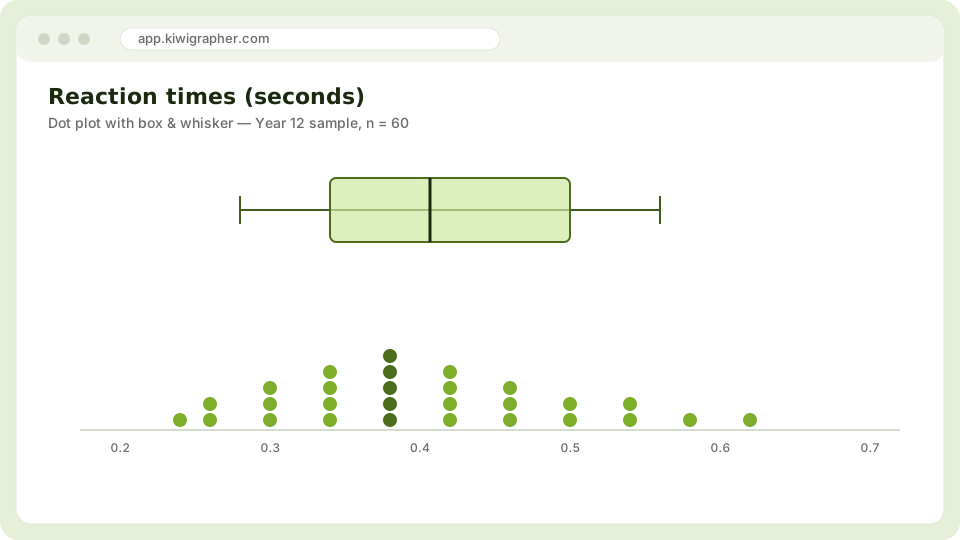
Pick the dot plot graph type and select your numeric variable. KiwiGrapher draws the dots and, by default, overlays the box and whisker, the box spans the lower and upper quartiles, the line inside is the median, and the whiskers reach to the extremes.
3. Split by group to compare
If you have a grouping variable, set it as the second variable. KiwiGrapher stacks a dot plot and box for each group, lined up on the same scale, exactly what you need for an “I notice that…” comparison.
4. Describe what you see
With the display in front of you, talk through the usual features:
- Centre: where are the medians?
- Spread: how wide are the boxes (the interquartile range)?
- Shape: is the data roughly symmetric, or skewed?
- Unusual values: any points sitting well away from the rest?
5. Export for your write-up
Use Export to save the graph as a PNG for a quick drop-in, or an SVG if you want it to stay crisp at any size in a report or on a slide.
That’s the whole workflow, no account, nothing to install, and your data never leaves the browser. Ready to try it? Open KiwiGrapher and make your first box plot.